A service technician arrives on-site to fix a packaging line. He needs to know if the replacement motor is in stock, what the customer was billed last time, and whether the part he is about to use is even covered under warranty. Back at the office, the finance team is waiting on that same work order to close so they can invoice the job before month end.
For years, this handoff between field operations and finance was the weak link in Dynamics 365 deployments. Business Central handled the accounting. Field Service handled the technicians. The two rarely talked to each other without custom middleware in between.
That has changed. Microsoft now ships a native, Microsoft-built integration between Dynamics 365 Business Central and Dynamics 365 Field Service, first released in the 2024 release wave 1 and expanded through 2025 with full service management support. You no longer need a third-party connector just to sync a work order with an invoice.
This guide covers exactly what the native integration does, what it requires (including the Premium license question most articles skip), how to set it up step by step, and when a third-party tool still makes sense.
Table of Contents
- What Is the Dynamics 365 Business Central and Field Service Integration?
- Project Only vs. Project and Service: Two Types of Integration
- Why Businesses Are Integrating Business Central with Field Service?
- Prerequisites Before You Start
- Step-by-Step: How to Set Up the Native Integration
- When You Still Need a Third-Party Integration Tool?
- Common Challenges and How to Resolve Them
- Licensing and Cost Considerations
- Common Mistakes to Avoid
- Frequently Asked Questions
- Why Choose Dynamics Square for Your Business Central and Field Service Integration
What Is the Dynamics 365 Business Central and Field Service Integration?
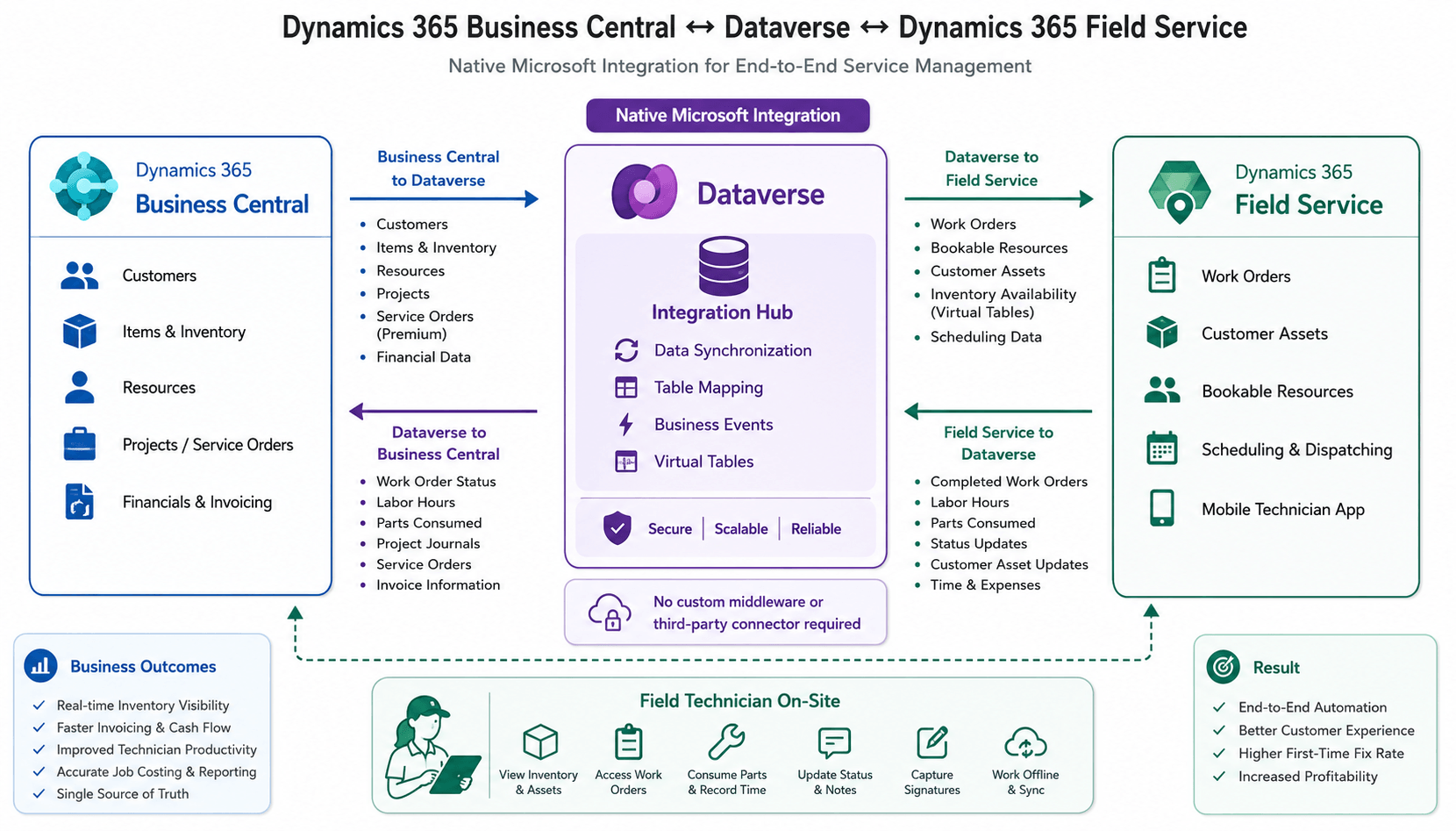
The Business Central and Field Service integration is a Microsoft-built connection that synchronizes work orders, resources, inventory, and financial data between Dynamics 365 Field Service and Dynamics 365 Business Central through Microsoft Dataverse. It runs bi-directionally, so a status change in Field Service updates Business Central automatically, and vice versa.
Field Service is built on top of Dynamics 365 Sales and lives natively in Dataverse. Business Central connects to that same Dataverse environment using two Microsoft AppSource apps: Field Service Integration and, optionally, Business Central Virtual Table. Once connected, the two systems exchange data without custom APIs, without a middle layer, and without manual re-entry. Microsoft documents the full setup in its official Business Central and Field Service integration guide.
This replaces the older approach many consultants and blog posts still describe, where teams built their own Power Automate flows or paid for a third-party platform just to move a work order into an invoice.
Project Only vs. Project and Service: Two Types of Integration
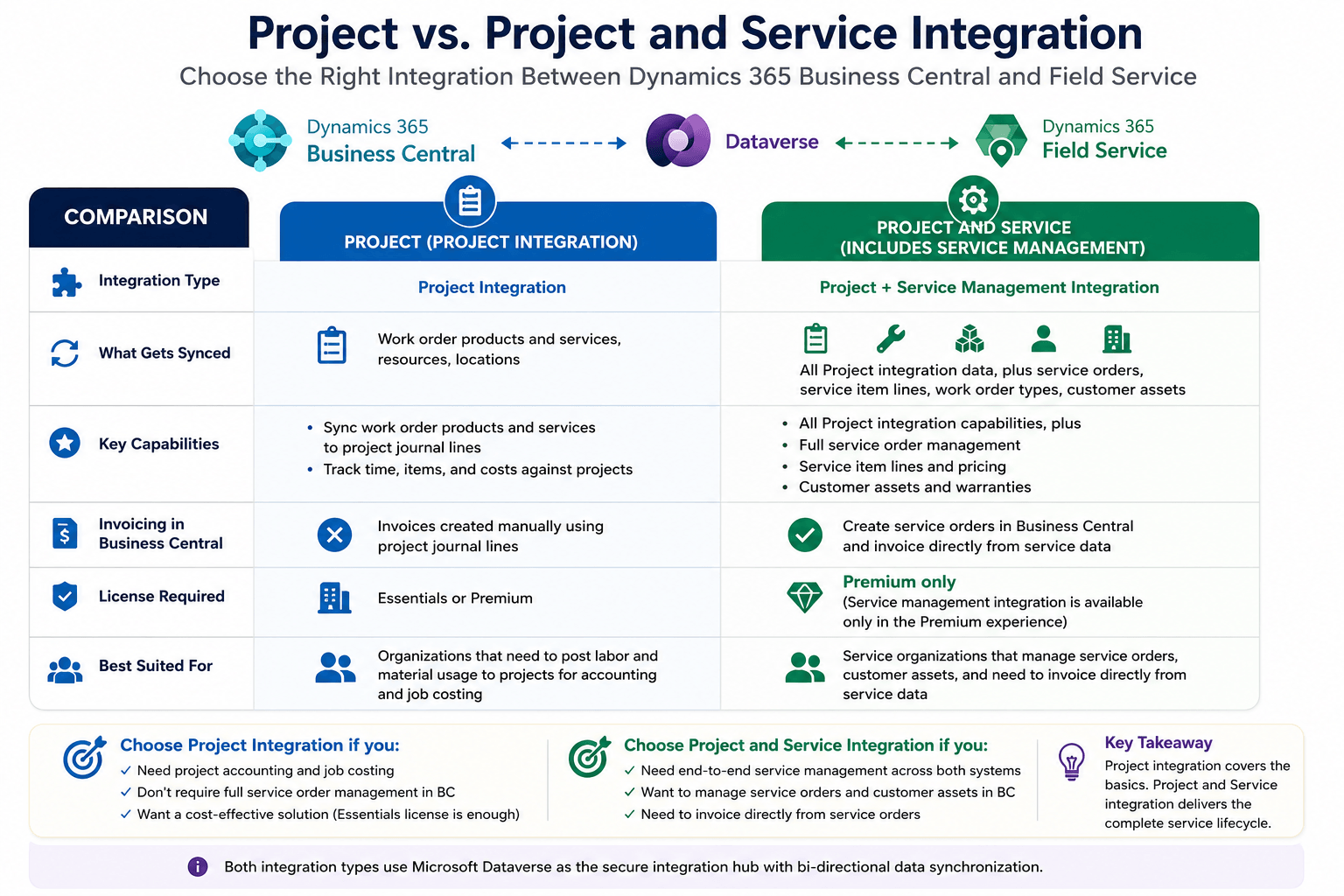
Microsoft offers two integration modes, and picking the wrong one is the most common planning mistake businesses make. If you are still working out which Business Central license fits your team, our Business Central pricing and licensing guide breaks down Essentials versus Premium in detail.
- Project integration syncs work order products and services in Field Service to project journal lines in Business Central. It works with the Essentials license and is enough if you only need labor and material usage to flow into the general ledger.
- Project and Service integration goes further. It syncs full service orders, service item lines, service order types, and customer assets between the two apps, and it lets you invoice directly from synced service data. This mode requires the Premium experience in Business Central. You cannot enable service management integration on its own; it is bundled with project integration.
| Integration type | What syncs | License needed |
|---|---|---|
| Project only | Work order products/services to project journal lines, resources, locations | Essentials or Premium |
| Project and Service | Everything in Project, plus service orders, service item lines, work order types, customer assets, invoicing from service data | Premium only |
If your service organization invoices based on parts and labor consumption but does not need full service order management in Business Central, Project integration alone may be sufficient and saves you the cost of a Premium license.
Why Businesses Are Integrating Business Central with Field Service?
- One source of truth for inventory: Technicians see live stock levels and locations from Business Central directly inside a work order, so they stop promising parts that are not actually on the shelf.
- Faster, more accurate invoicing: Completing a work order in Field Service can trigger a project journal or service order in Business Central, cutting the lag between job completion and billing.
- Better technician scheduling: Syncing resources as bookable resources means dispatch teams schedule based on real skills and availability instead of a spreadsheet.
- Cleaner financial reporting: Every work order becomes cost and revenue on the general ledger automatically, which matters for job costing and margin analysis on service contracts.
- Less duplicate data entry: Customers, items, and resources are mapped once through integration table mappings and stay in sync going forward.
A mid-size HVAC and mechanical services contractor is a good example (illustrative scenario, not a specific client engagement). Before integration, dispatch used Field Service, but billing staff re-keyed every completed work order into Business Central by hand, often a day or two after the job closed. With Project and Service integration turned on, completed work orders post as service orders automatically, and the average time from job completion to invoice dropped from two days to same-day. This kind of setup is common among the manufacturing and equipment servicing businesses we work with.
Prerequisites Before You Start
Confirm these before beginning setup, since missing even one causes the assisted setup guide to fail partway through.
- A working connection to Dataverse from Business Central
- Dynamics 365 Sales integration enabled (Field Service depends on it)
- System Administrator role in both Dataverse and Business Central
- Premium experience and license if you plan to integrate service management, not just projects
- The Field Service Integration app installed from Microsoft AppSource
- The Business Central Virtual Table app installed, only if you want technicians to see Business Central inventory availability inside Field Service
If your Dataverse and Sales connections are not yet in place, that groundwork should happen before this project starts. Our Dynamics 365 implementation services team can assess your current environment first.
Step-by-Step: How to Set Up the Native Integration
- Connect Business Central to Dataverse and Dynamics 365 Sales: This is a hard prerequisite. Field Service cannot be reached without the Sales connection in place first.
- Install the Field Service Integration app from AppSource, then run the assisted setup guide from the Extension Management page in Business Central.
- Run "Set up integration to Dynamics 365 Field Service" from the Assisted Setup page. During this guide you will set:
- Project Journal Template and Batch, used to post consumption from work orders
- Hours Unit of Measure, since Field Service tracks services by duration
- When work order products and services synchronize (on use or on completion)
- Whether project journal lines post automatically or manually
- Integration Type: Project, or Project and Service (Premium required for the latter)
- Choose your integration type carefully: If you select Project and Service, Business Central also creates a matching solution in Power Apps and adds table mappings for service orders, service item lines, and work order types.
- Run a full synchronization from the Dynamics 365 Field Service Integration Setup page. This maps projects, resources, locations, and, if applicable, service documents and items.
- Configure Field Service settings: On the Field Service Setting page, turn off Calculate Price and Calculate Cost, set Work Order Invoice Creation to Never, and clear Use of Products Out of Stock to avoid false stock warnings.
- Sync people-type resources as bookable resources if you want technicians using mobile Field Service tools to see synced data. This requires matching email addresses between the Business Central Resource Card and the Field Service user record.
- Optionally enable item availability by location: Installing the Virtual Table app and setting up synthetic relations lets technicians view real-time Business Central inventory availability without duplicating item records into Dataverse.
- Test with sample work orders before going live, checking that status changes, quantities, and invoicing behave as expected in both directions.
How Order Status Stays Aligned Across Both Systems?
| Business Central status | Field Service status | Direction |
|---|---|---|
| Pending | Unscheduled | Both ways |
| Pending | Scheduled | Field Service to Business Central |
| In process | In progress | Field Service to Business Central |
| Finished | Completed | Field Service to Business Central |
| Finished | Posted | Field Service to Business Central |
| N/A | Canceled | Manual only, not synchronized |
Note the last row: canceled work orders do not sync automatically. Teams need a manual process to close out canceled jobs on both sides, and this is one of the most common gaps businesses miss during setup.
When You Still Need a Third-Party Integration Tool?
The native integration covers most standard service scenarios, but it is not built for every situation. Consider a third-party platform such as KingswaySoft or a custom Power Automate/Power Platform build when you need:
- Integration with Dynamics 365 Finance and Supply Chain Management instead of Business Central (Microsoft offers a separate preview integration for that combination)
- Complex multi-entity or multi-currency consolidation across ERPs that goes beyond standard table mappings
- Real-time integration with non-Microsoft systems alongside Business Central and Field Service
- Historical data migration at volumes beyond what a standard sync run is designed for
For a typical single-entity US service business already on Business Central and Field Service, the native path is faster to deploy, cheaper to maintain, and directly supported by Microsoft.
Common Challenges and How to Resolve Them
- Setup fails partway through: This almost always traces back to a missing Dataverse or Sales connection. Confirm both are active before installing the Field Service Integration app.
- Item availability does not show correctly in Field Service: This requires the Virtual Table app and correctly configured synthetic relations between the Product, Work Order Product, and Item Availability tables. Skipping the synthetic relation step is the most common cause of blank availability data.
- Invoicing does not trigger as expected: Check the Automatically Post Project Journal Lines setting and confirm number series on service orders allow manual numbering, since Business Central uses the order number generated in Field Service.
- Canceled jobs pile up unresolved: Since cancellations are not synchronized, build a short manual review step into your weekly ops routine to close out canceled work orders in both systems.
- Users hit permission errors: Confirm the integration user has the Dynamics 365 Business Central Integration Administrator, Integration User, and Product Availability User roles in Sales, and the Business Central Field Service Integration security role in Field Service.
Licensing and Cost Considerations
Project-only integration works with a Business Central Essentials license, currently priced at $80 per user, per month following the November 2025 Business Central price increase. Project and Service integration, which unlocks full work order to invoice automation, requires the Premium license at $110 per user, per month. That price difference matters when scoping a deployment: if your service team only needs cost and labor to hit the general ledger, Essentials with Project-only integration can meet the need without the Premium upgrade. If invoicing directly from synced service orders is the goal, Premium is not optional.
Field Service licensing is separate from Business Central and is priced per user based on the Dynamics 365 Field Service application. Confirm current Field Service pricing with Microsoft or your partner, since it is licensed independently of the Business Central tier. Use our ERP implementation cost calculator to estimate the full project budget, including setup and consulting time, not just license fees.
Common Mistakes to Avoid
- Enabling Project and Service integration without confirming the Premium license is active first, which stalls the setup guide
- Forgetting to set the Hours Unit of Measure, causing duration-based services to sync incorrectly
- Skipping the full synchronization step after initial setup, leaving resource and location mappings incomplete
- Assuming canceled work orders sync automatically and letting them go unreconciled
- Treating this as a one-time IT project instead of assigning an owner to monitor sync logs after go-live
Frequently Asked Questions
Does Business Central have a native integration with Dynamics 365 Field Service?
Yes. Microsoft released a native integration starting in the 2024 release wave, expanded with full service management support in 2025. It connects the two apps through Dataverse using the Field Service Integration app from AppSource, without requiring a third-party connector for standard scenarios.
Do I need a Premium license to integrate Field Service with Business Central?
Only if you want the Project and Service integration type, which syncs full service orders and enables invoicing from Field Service data. Project-only integration, which syncs work order usage to project journals, works with the Essentials license.
Can I integrate Field Service with Business Central without Dataverse?
No. Field Service is built on Dataverse, and Business Central connects to Field Service through a Dataverse connection combined with Dynamics 365 Sales integration. There is no supported path that skips Dataverse.
What happens to canceled work orders in the integration?
Canceled work orders are not synchronized between the two systems. Teams need a manual process to reconcile canceled jobs on both sides.
Is KingswaySoft still needed to integrate Business Central and Field Service?
Not for standard service scenarios, since Microsoft's native integration now covers work orders, invoicing, resources, and inventory availability. Third-party tools remain useful for edge cases like Finance and Operations integration, complex multi-entity setups, or large historical data migrations.
Why Choose Dynamics Square for Your Business Central and Field Service Integration
Rolling out this integration correctly the first time, especially the Project and Service path with Premium licensing, service order mapping, and item availability setup, takes hands that have done it before. Dynamics Square brings 15+ years of Microsoft Dynamics experience, certified consultants across finance, supply chain, and service management, and end-to-end delivery from planning through go-live support.
We help US-based service businesses through our Dynamics 365 consulting practice to:
- Scope the right integration type (Project vs. Project and Service) before licensing is purchased
- Configure synchronization, resource mapping, and item availability correctly the first time
- Handle US-specific tax, compliance, and localization requirements
- Provide ongoing support, upgrades, and optimization after go-live
With offices across California, Texas, Illinois, New Jersey, and Massachusetts, plus a global presence spanning the USA, UK, and Canada, Dynamics Square supports service organizations wherever they operate.
Ready to connect your field operations with your back office the right way?Schedule a free consultation with our Dynamics 365 implementation team, or call us:
- California: +1 213 784 0845
- Texas: +1 281 899 0865